¶ Employees on ONEtobeONE
Employees are both the actual employees of your company, as well as users of the ONEtobeONE platform.
The drivers of your transport company, operators of your depot and administrative staff of your company are maintained as employees on ONEtobeONE.
The employees view can be found at System -> Employees.
You can add a work schedule for your drivers by editing their profile
¶ Inviting new employees
You can invite a new employee by clicking the Invite new employee button on the action bar, or hovering over My account and choosing Invite others in the dropdown menu.
The steps below also apply to inviting the first employee of a new partner.
¶ Step 1. Fill in the employees' details.
Only the e-mail address and name are required. Some of the other choices will save the employees time, and make the platform easier to use
- Company: The company this employee is saved under
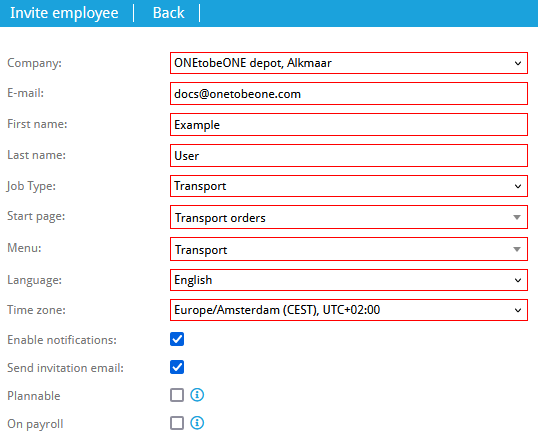
- E-mail address: This is used for both logging into ONEtobeONE and receiving notifications
- Name: Used to identify the user by you and your partners
- Job type: Used to identify the user by you.
- Cleaners: Use job type Operator
- Drivers: Use job type Driver
- Start page: In this dropdown menu you can choose which page the employee sees on log-in or when returning to the home page
- Menu: This dropdown allows you to choose which topmost action bar (link!) the employee is shown.
- Language: Language of the interface, we currently support Dutch, English, German, French, and Spanish.
- Time zone: Change only if this field is not correct by default.
- Enable notifications: Unchecking this box means that the user will not receive e-mails from the ONEtobeONE platform
- Send invitation: Unchecking this means the employee will not be notified by e-mail when added. This is useful when adding partners, who may only need to receive notifications from the system.
¶ Step 2. Set privileges
Privileges are how you control what this user can access and edit. By default, a user will either have no privileges or the same privileges that have been selected when they have been first invited onto the platform.
Pay close attention when choosing which privileges you want to give to a user.
¶ Step 3. Notification settings
On the right side of the screen, you'll see a box with notification settings for the employee. We recommend choosing immediate for everything relevant to their position and none for the rest.
A more detailed description of the notification settings can be found here.
¶ Step 4. Done!
Click Invite Employee on the action bar on the upper left side. The employee will now receive an invite e-mail (unless blocked oñ Step 1.) and can access the platform.
¶ Maintaining information about employees
You can maintain information like the job type, phone number, privileges and details pertinent to planning about your employees if you have the user administrator privilege
You can find all of the employees of your company in the Employees view. You can edit an employees information by clicking the eye symbol next to their name.
Editing employee profiles is especially important for drivers of your transport company
¶ Details for planning
The fields below the phone number are only used for drivers of a transport company, and are important for effective planning
- Work schedule: Schedule the employees capacity is generated on
- Start location: Partner or your company, physical location where a driver starts his shift
- Standard truck: Truck assigned to the driver by default in capacity planning
- Standard trailer: Trailer assigned to the driver by default in capacity planning